
No products in the cart.
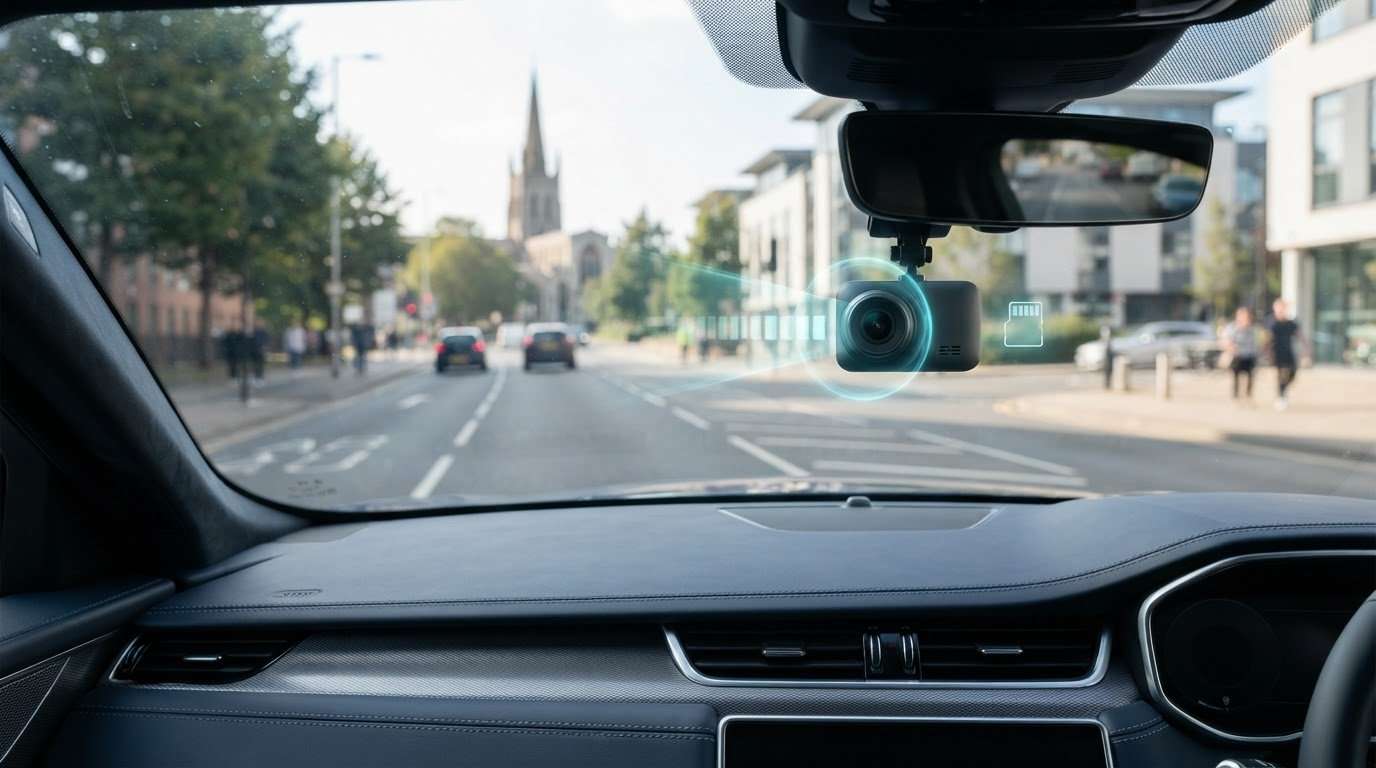
How Long Do Dash Cameras Record? What Affects Footage Time
What Affects Footage Time
A dash cam’s recording time depends on its memory card and video quality. In a single-camera setup, a 32GB card stores about 2 to 4 hours of 1080p footage, while a 64GB card stores about 2 to 4 hours of 4K footage. Howway cameras record depends on loop recording: when the card fills, the camera can overwrite older clips to keep recording.
It’s easy to assume that recording stops when a memory card fills, but loop recording changes what happens next. This guide explains how long different card sizes can hold footage, how resolution and front-and-rear recording affect that time, and what continuous and loop recording mean. You’ll also learn how clip-length settings affect saved footage, so you can better understand what may still be on your card when you need to review an incident.
Key Takeaways
- Loop recording keeps a dash cam running by replacing older footage, but protected incident clips are protected from routine overwriting.
- Higher resolution and recording from both front and rear cameras use storage faster, so match card capacity to your setup and driving needs.
- Parking recording depends on motion or impact detection, available storage and vehicle power, not just the camera’s recording settings.
- Short video segments make footage easier to review; understand how your chosen loop length affects the clips saved.
- Use a high-endurance memory card designed for repeated recording, and know how to protect important footage before it is overwritten.
How Long Does Dash Cam Footage Last?
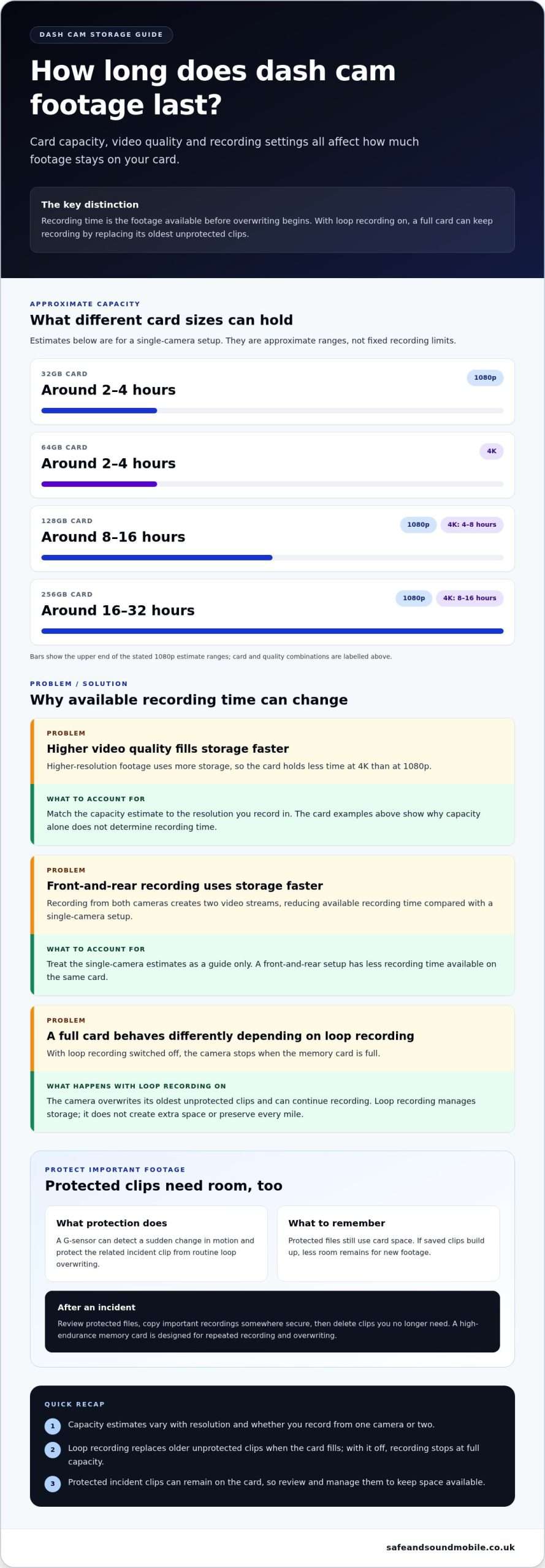
Recording time depends on the memory card, video quality and whether loop recording is enabled. With loop recording, a full card keeps recording by overwriting the oldest footage.
For UK drivers, no single dash-cam setting determines how long you can legally keep or share footage. If a clip identifies people or number plates, consider privacy and data-protection implications before retaining or sharing it.
Loop Recording and Old Footage
Loop recording saves video in short clips, then overwrites the oldest unprotected clip when the card fills. This lets a dash cam keep recording without needing a new card whenever storage runs out. For example, after several journeys, the dash cam may replace earlier road footage with newer clips unless it has been protected.
Storage capacity gives a useful estimate of how much footage is available before overwriting starts. A 128GB card holds around 8 to 16 hours of single-camera 1080p footage, or around 4 to 8 hours at 4K. A 256GB card holds around 16 to 32 hours at 1080p, or around 8 to 16 hours at 4K. These are approximate ranges, not fixed recording limits.
Resolution affects how quickly a card fills because higher-quality footage uses more storage. Recording from front and rear cameras also creates two video streams, reducing available recording time compared with a single-camera setup. If loop recording is switched off, the camera stops when the memory card is full instead of replacing old clips.
Protected Clips and Overwriting
Protected footage is marked so routine loop recording won’t overwrite it. An impact-triggered G-sensor detects sudden motion and can protect the related clip until you review and delete it. After an incident, that clip may remain on the card while ordinary footage around it is gradually replaced.
Protection doesn’t mean every recording is kept indefinitely. Saved incident clips can fill a card if they’re never reviewed, leaving less space for new footage. After an event, check protected files, copy important recordings to a secure location, then delete clips you no longer need. A high-endurance memory card is designed for repeated recording and overwriting.
Footage captured while parked follows the same storage limits. If an impact-triggered recording is protected, it can remain on the card while standard loop footage continues cycling. For example, a parked-car incident clip may be preserved while surrounding unprotected clips are overwritten as the camera records later journeys.
Are Continuous and Loop Recording the Same Thing?
No. Continuous recording describes video captured without interruption, while loop recording determines what happens when the memory card fills. A dash cam can record continuously with loop recording enabled, then overwrite older clips instead of stopping. Without loop recording, it stops once storage is full.
That difference matters on a long journey. A camera may keep recording throughout the drive, but available storage still limits how much footage remains on the card. Loop recording manages that limit by replacing older, unprotected clips. It doesn’t create extra storage or preserve every mile. Check the camera’s settings to make sure its recording behaviour suits how you use the vehicle.
Continuous Recording and Parking Mode
Most dash cams start recording when the ignition is on and stop when the vehicle is turned off. Parking Mode is a separate feature that can record while the car is parked, if the camera supports it. Depending on its design, the camera may use motion or impact detection to start recording when the vehicle is parked.
A camera with Parking Mode may enter sleep mode after a period without activity. This helps conserve the car battery while allowing the camera to wake and record when its sensors detect movement or impact. Some models require hardwiring and an active Parking Mode feature to record with the engine off. Storage and available battery power both limit how long parked recording can continue.
Motion-triggered recording captures activity the camera detects near the parked car. Impact-triggered recording responds to a sudden change in motion, such as a collision. A G-sensor can protect incident footage from being overwritten by ordinary loops. The camera’s motion detection saves events, so understand its Parking Mode before relying on it in a car park.
Manual Locking and Parking Mode
Manual locking and Parking Mode serve different purposes. A driver can manually protect a clip while driving, while Parking Mode responds to activity after the vehicle is left. Some cameras let drivers record manually for a set duration, such as one minute, or for as long as they choose. A protected clip remains until you review and delete it, rather than cycling out with routine footage.
Protected files still use card space. If you manually lock several clips during a journey, for example, those recordings may remain alongside later footage. Review incident clips and delete unwanted protected files to free storage. Otherwise, saved recordings can reduce the space available for new driving or parking footage.
Parking recording isn’t the same as recording continuously with the ignition off. A camera may wake only after motion or an impact, rather than capture every moment in the car park. Recording for 24 hours can damage a car battery without appropriate precautions. Hardwired cameras typically shut off when battery voltage drops too low, helping limit battery drain.
Factors affecting dash cam recording duration
A dash cam’s recording time depends on memory capacity, video settings and available power. With the ignition off, runtime depends on the vehicle’s battery and storage, so there’s no single duration for every setup.
Recording With the Ignition Off
Most dash cams switch off with the ignition, while models with Parking Mode can record after the engine stops. Some use motion or impact detection to start recording instead of recording continuously. This distinction matters in a parked car: a trigger-based camera saves footage of detected activity, but recording still depends on power and card capacity.
Hardwiring lets a compatible dash cam operate while the vehicle is off. However, recording duration remains limited by battery power and storage. A camera may also shut off if the vehicle battery voltage drops too low. For example, it may capture an impact-triggered clip, then stop before recording further parked activity.
Battery Runtime and Recording Duration: Battery runtime is how long a dash cam can draw power before recording stops or its power supply cuts out. Using a dash cam for 24 hours can damage a car battery without appropriate precautions. Harshut cameras typically switch off when battery voltage drops, helping prevent further d recording from draining the vehicle battery; there is also a separate limit. Even with power available, a full card stops recording if loop recording is disabled. If loop recording is enabled, the camera can overwrite older footage, but protected incident clips still take up memory. A parked camera may stop recording if its power supply cuts out, or it may keep recording while cycling through unprotected clips.
No universal battery-runtime figure applies to every car and camera. Available battery power, recording mode and card capacity all affect how long recording continues. A dash cam using Parking Mode to capture motion-triggered events draws power differently from one set to record continuously.
Typical Recording Duration Factors
Video resolution affects how quickly footage uses memory. A 4K recording takes more storage than 1080p footage, so the same card holds less recording time at the higher resolution. Compression format matters too: H.265 (HEVC) stores more footage than H.264 at the same resolution.
Camera configuration changes the result. A front-and-rear setup records two streams to a shared card, leaving less time than a single camera. Protected files also take up space until you review and delete them. For example, several saved incident clips leave less space for new journeys.
Manual recording settings can also affect duration. Some dash cams record manually for a set period, such as one minute, while others capture for as long as the driver wants. Match resolution, format and recording mode to how you use the camera. A long journey, a parked car and a short commute place different demands on memory and power.
Do Dash Cams Record All the Time?
A dash cam usually records while the ignition is on, but storage capacity determines how much footage it keeps. Card capacity and video quality help estimate how long it takes before older clips are overwritten.
MicroSD Card Storage Capacity
A microSD card stores dash cam footage, and its capacity determines how much video fits before loop recording replaces older clips. Cards commonly range from 32GB to 256GB. A single-camera 1080p setup can use a 64GB or 128GB card for a good balance of space and capacity.
Higher-quality video uses more storage. A 64GB card holds around 4 hours of 2K footage, but may hold only 2 hours of 4K video. A 32GB card stores around 1 to 2 hours of single-camera 4K footage. These estimates show why the same SD card can provide different recording times across dashcams.
Front-and-rear cameras record two dashcams to one memory card, so they use storage faster than a single camera. Footage from both cameras reduces available recording time compared with estimates for one camera. Parking Mode can also add clips, especially if the camera captures activity while the car is parked.
Card Capacity and Recording Time
Recording time rises with card capacity, but resolution and camera count affect the result. At 1080p, a 32GB card holds around 2 to 4 hours of single-camera footage before loop recording begins. A 64GB card holds around 4 to 8 hours, while a 128GB card holds around 8 to 16 hours.
- 32GB: around 1 to 2 hours of single-camera 4K footage.
- 64GB: around 2 to 4 hours of single-camera 4K footage.
- 128GB: around 4 to 8 hours of single-camera 4K footage.
- 256GB: around 8 to 16 hours of single-camera 4K footage.
Use the camera’s resolution and number of recording channels to interpret these figures. A front-and-rear setup can have roughly half the recording time of a single camera. A 4K dashcam or dual-camera system commonly suits a 64 GB or 256GB card, while a daily commuter making short trips may find 64GB sufficient. For ongoing surveillance, remember that loop recording keeps the camera running, but it doesn’t retain every clip indefinitely.
Dash cam recording segment lengths
Dash cams usually divide continuous footage into separate clips rather than one long file. Common segment settings are 1, 3, 5 or 10 minutes, and the choice affects how you review recordings, not the total storage capacity.
To check or change recording duration, open the dash cam’s settings menu or companion app and find the loop or video-length option. Review the selected clip length, resolution and available storage settings together, because each affects how footage is saved.
A 5-minute loop setting saves footage in 5-minute segments. A driver can then locate a particular journey more easily than searching through one continuous recording. If a collision occurs near the end of a clip, the footage before and after the impact may sit in separate files. When reviewing an incident, check both neighbouring segments.
Short clips can make an event quicker to find, but they create more individual files to sort through. Longer clips reduce the number of files, though a recording may include more driving before and after the relevant moment. For example, a 10-minute segment may contain a longer stretch of the route than a 1-minute segment. Thecamera’ss loop feature still manages storage separately.
Segment length also affects how a driver handles sensor-captured footage. An impact-triggered G-sensor may protect an incident clip from being overwritten. If the protected file’s timestamp is close to the collision, it’s easier to identify. If the event falls across a clip boundary, review the adjacent file too. Don’t assume one saved segment contains the complete event.
Choose a length that suits how you use your dash cam. A shorter setting can help pinpoint a brief incident, while a longer setting may make journey playback feel more continuous. Learn where the camera stores each clip and how protected files appear. A quick review after setup helps you understand what the dash cam captured and how its files are connected.
Before changing settings, note the current segment length and recording format. Change one setting at a time, then play back a saved clip to confirm the result. If the dash cam uses an app, check whether you adjust settings on the device or through the connected phone. Menu names vary, so follow the camera’s displayed labels rather than assuming every model has the same layout.
Need a dash cam for your vehicle? Explore dash cam options and choose a setup that suits your recording needs.
Safe & Sound Mobile: Insurance-Approved Vehicle Trackers
Safe & Sound Mobile offers Insurance-Approved Vehicle Trackers for drivers who want an extra layer of vehicle security alongside dash-cam footage. A camera records what happens on a vehicle, while a tracker supports security through a different system. Safe & Sound Mobile also offers Vehicle Immobilisers, Car Audio Systems and a Mobile Installation Service.
If you’re considering a tracker or immobiliser for your vehicle security setup, Safe & Sound Mobile can help you explore your options. Choose equipment that fits your priorities, whether you want to record journeys or add an extra layer of security.
Contact Safe & Sound Mobile to discuss vehicle security options.
Make Your Next Drive Better Protected
Knowing how long dash cameras record for is useful, but the right setup depends on how you use your vehicle. Make reviewing your camera settings part of your regular ownership routine, especially after changing recording modes or adding a camera. That way, you’ll know how footage is saved before you need to find a particular journey or incident.
Consider vehicle security as part of the wider picture, too. Recorded footage can help you review what happened, while separate security equipment addresses different priorities. Choose the combination that suits your vehicle and how it’s used. A clear plan helps you move from understanding your dash cam to making practical choices about protecting your car.
For support with your next vehicle-security step, contact Safe & Sound Mobile today. Take the time to choose the setup that suits you, then drive with greater confidence.
Frequently Asked Questions
Do Dashcams Record When the Car is Off?
Some dashcams can record with the engine off, but it depends on the camera and how it’s powered. To find out what yours captures, check its recording status after parking, then review the resulting files. A test in a familiar, safe parking place can show whether the camera saves event clips or remains inactive, without relying on assumptions about its settings.
How do dashcams work when the car is on?
With the dashcam running, the dashcam captures the view through its lens and saves video to its card. Check the camera’s display or app to see whether it’s recording. A short playback test can also confirm the image is clear, the correct camera view appears, and the time on the clip matches the journey.
So, How Much Storage Do You Really Need?
Start with your driving pattern: consider how often you want to review footage and how much time passes between reviews. Then account for whether you use one camera or front and rear views. Ifyou’ree unsure, check the camera’s remaining-recording estimate after a typical journey. This gives you a practical indication of whether your current card suits your routine.
The Ultimate Guide to Dashcam Storage: How Much Do You Really Need? Dashcam storage is about what you need to keep, not just what you record. After a journey, identify important clips, copy them to a secure location and confirm they play before clearing the camera’s card. This routine helps prevent useful recordings from getting lost in everyday journeys and gives you a clearer picture of how much space you need.
What happens when my SD card is full?
Depending on its loop setting, the camera either replaces eligible older footage or stops recording. If you need a particular clip, preserve it before managing the card. After transferring a recording, play the copied file to make sure it works before deleting the original. This simple check helps avoid removing the only usable copy of an important incident.
What impacts how much space is used on my SD card?
The camera’s recording quality, number of views, and saved clips affect available space. To see how your settings use storage, note thecard’ss free-space reading, record a representative journey, then compare the reading afterwards. This practical check shows the effect of your actual setup, including any protected files, without relying solely on a general estimate.
How long does a dash cam record on a memory card?
If you’re wondering how long dash cameras record for, there isn’t one fixed duration for every setup. Use the camera’s recording estimate as a guide, then compare it with a typical journey and your review habits. The estimate can help you decide whether to change settings or choose more card capacity, while keeping important clips saved separately.
How much footage can a 32GB, 64GB, or 12Recordingcard store?
Recording time for 32GB, 64GB, and 128GB cards depends on the camera’s resolution and whether you record one view or multiple views. Use the estimates in the storage section for the relevant resolution, then account for your camera arrangement. For a more personalised check, compare the dashcam’s remaining-time estimate with the dashcam’s a journey you regularly make.


About author
Related posts
A dash cam can keep recording when your car is off, but only if it has a suitable power source and parking mode. A hardwired... Continue reading

Does a gps tracking dash cam let you find your car if it’s stolen? Not by itself. GPS can add location and journey context to... Continue reading
Could choosing the wrong tracker category leave your insurer’s requirement unmet? The right thatcham approved tracker installation uk starts with the... Continue reading

Real-Time GPS Tracking Chelmsford: Cars, Vans and Fleets Real-time GPS tracking can help vehicle owners and businesses in Chelmsford view location information through a supported... Continue reading

Thatcham Tracker Categories: S5, S7 and Older Labels Thatcham tracker categories can be confusing if your paperwork mentions Category 3, Category 5 or Category 6.... Continue reading